


Digital Invitations
Share event details and follow guest responses from your dashboard.
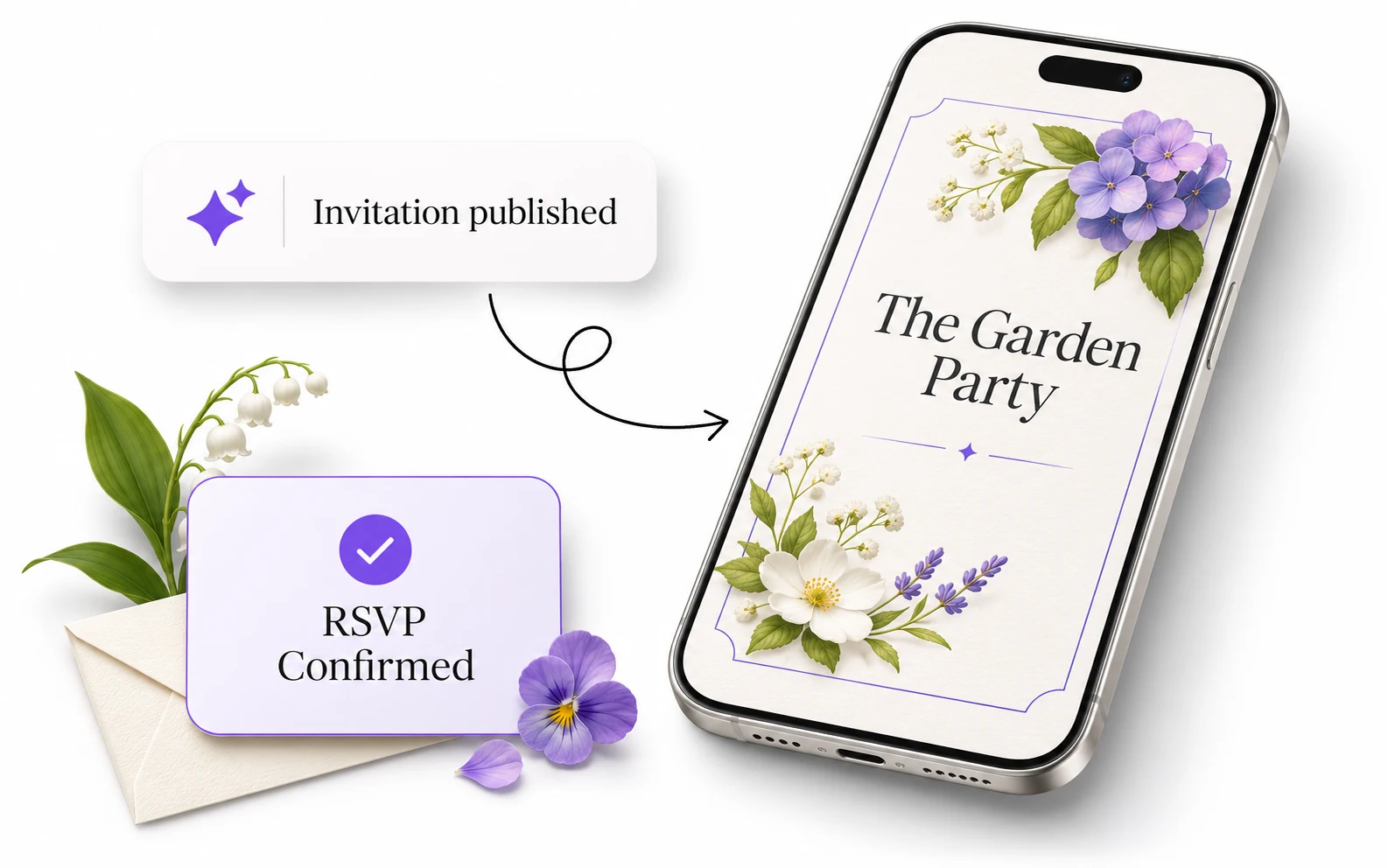
Give guests one link for the event schedule, venue and details. They can open it on a phone and return to the same invitation when they need directions or want to check the timing.
The studio designs and publishes the invitation in Manage. When the chosen setup supports guest responses or wishes, the studio can review what comes back in the same workspace.
What’s included
-
Event information
Present the event name, dates, venue and contact details. Use the available media and theme controls to give guests the context they need before they travel. -
Guest actions
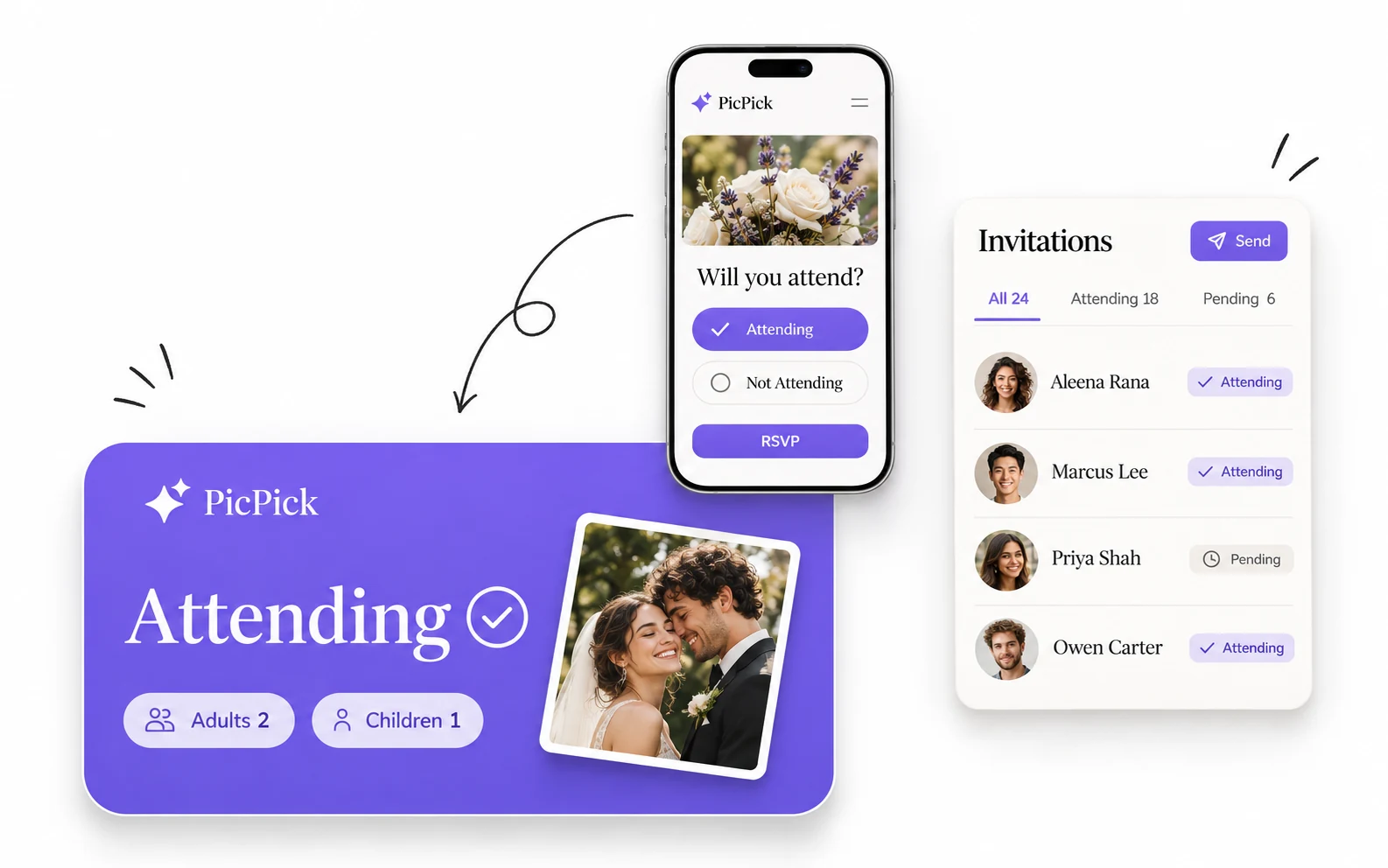
Review the RSVP, wishes and guest-media options offered by the selected invitation. Preview the guest view to see exactly which actions are exposed. -
Response review
Follow RSVPs and attendee totals separately. One guest response can include several attendees.
Where it fits in your workflow
Weddings
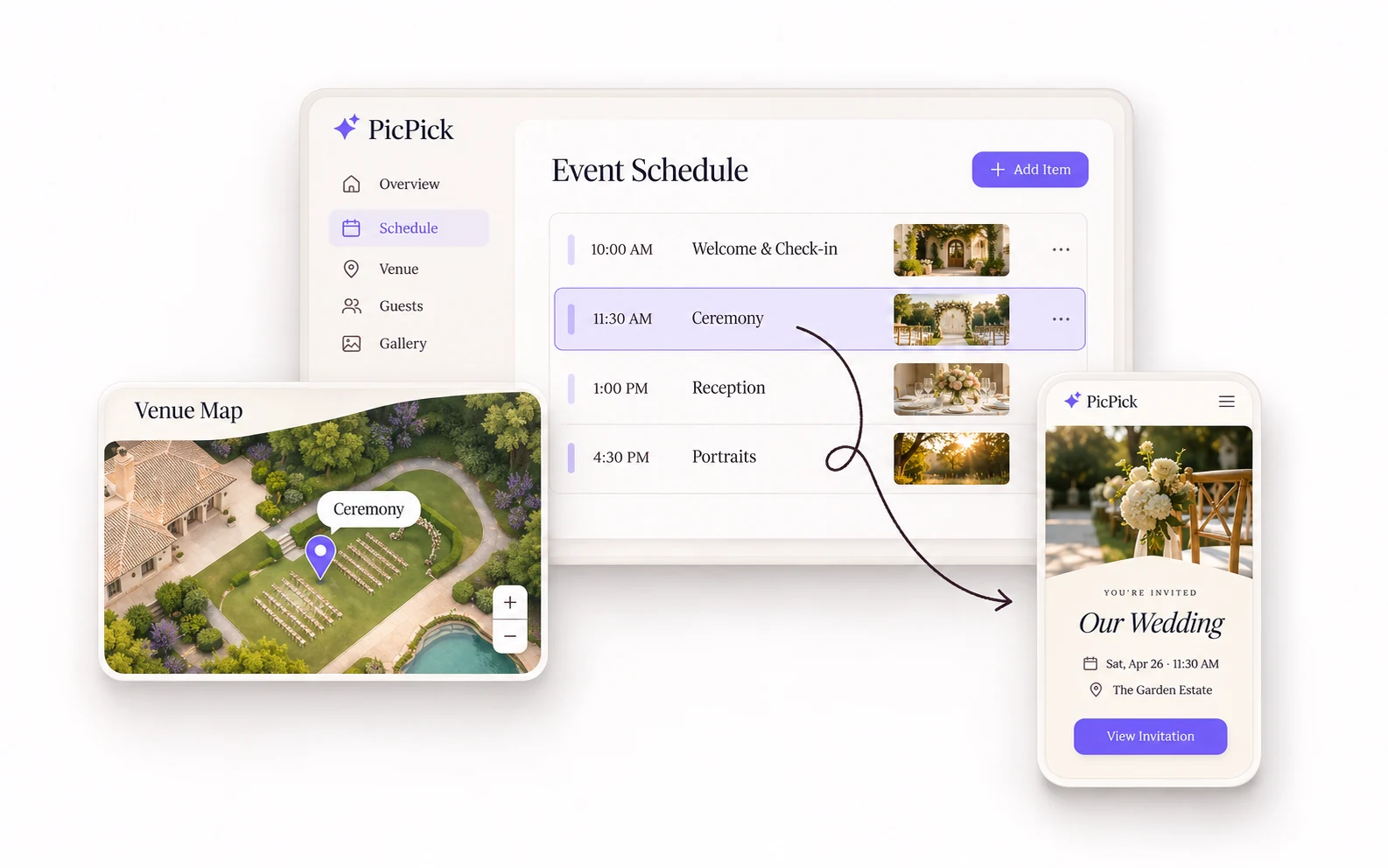
Share ceremony and reception details in one place so guests can refer to the schedule and venue on the day.
Studio-hosted events
Publish a simple event page and check attendance in Manage when RSVPs are available.
Preview, publish and review responses
Preview on both screen sizes
Check text, media, location and contact links on mobile and desktop before sharing.
Test the public link
Publish first, then open the shared URL separately. Check it again when dates, venue details or guest actions change.
Common questions
Check the public URL, saved/published state and current service access.
Invitations use the Manage workspace rather than the upload page used for media services.
Get started with Digital Invitations
Follow the walkthrough or choose how to open PicPick on your device.