


Find Similar
Review near-duplicate photos and technical quality before sending work to clients.
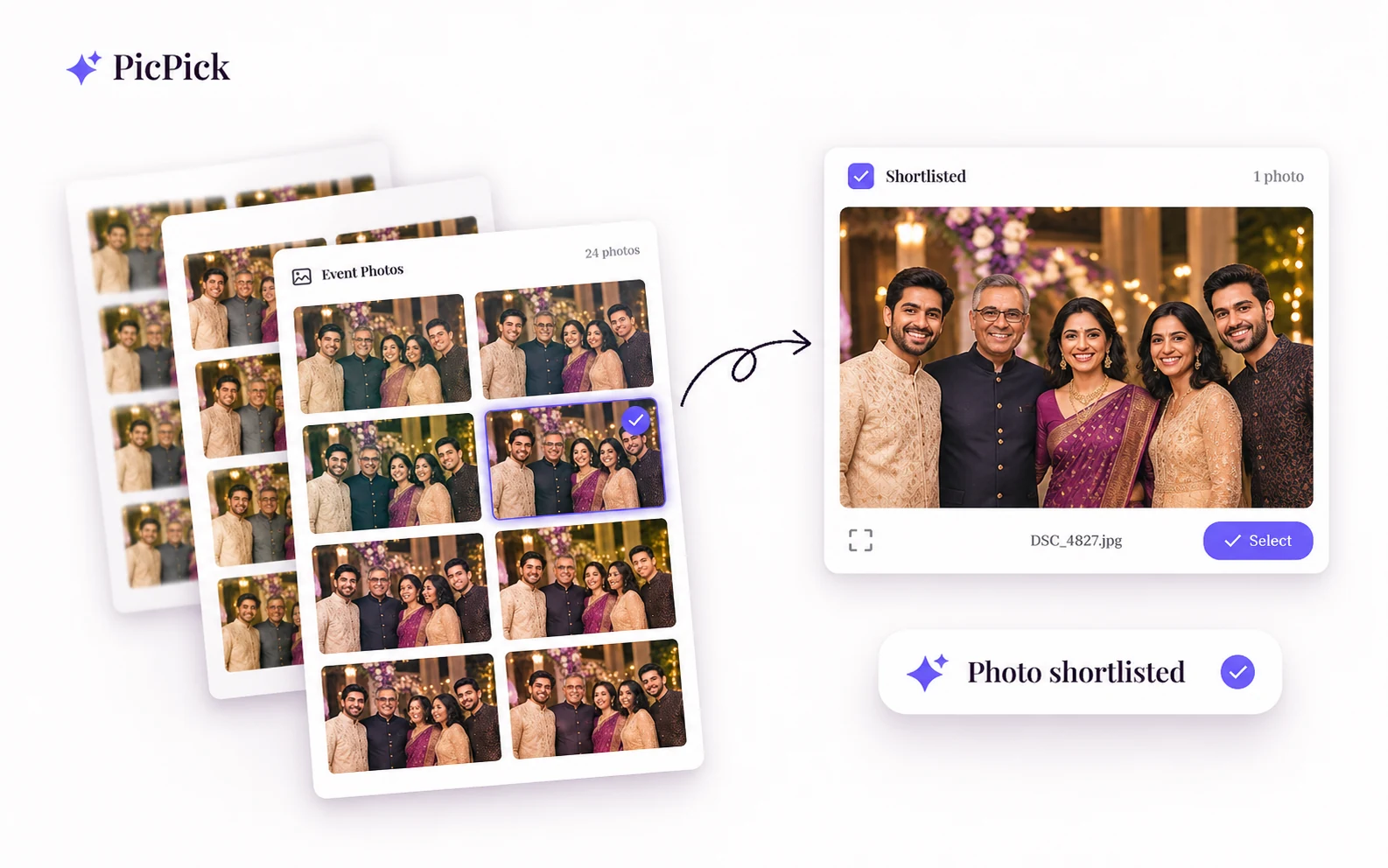
Find Similar helps you review repeated frames in panels, galleries and collections. Open it from the item menu to analyse the photos and inspect related shots in groups.
This is useful when several photos look nearly identical at thumbnail size. Open the candidates, compare the details and decide which frames to keep.
What’s included
-
Similarity groups
Review groups after analysis completes. While the worker is running, group assignments and suggested picks can still change. -
Technical and visual filters
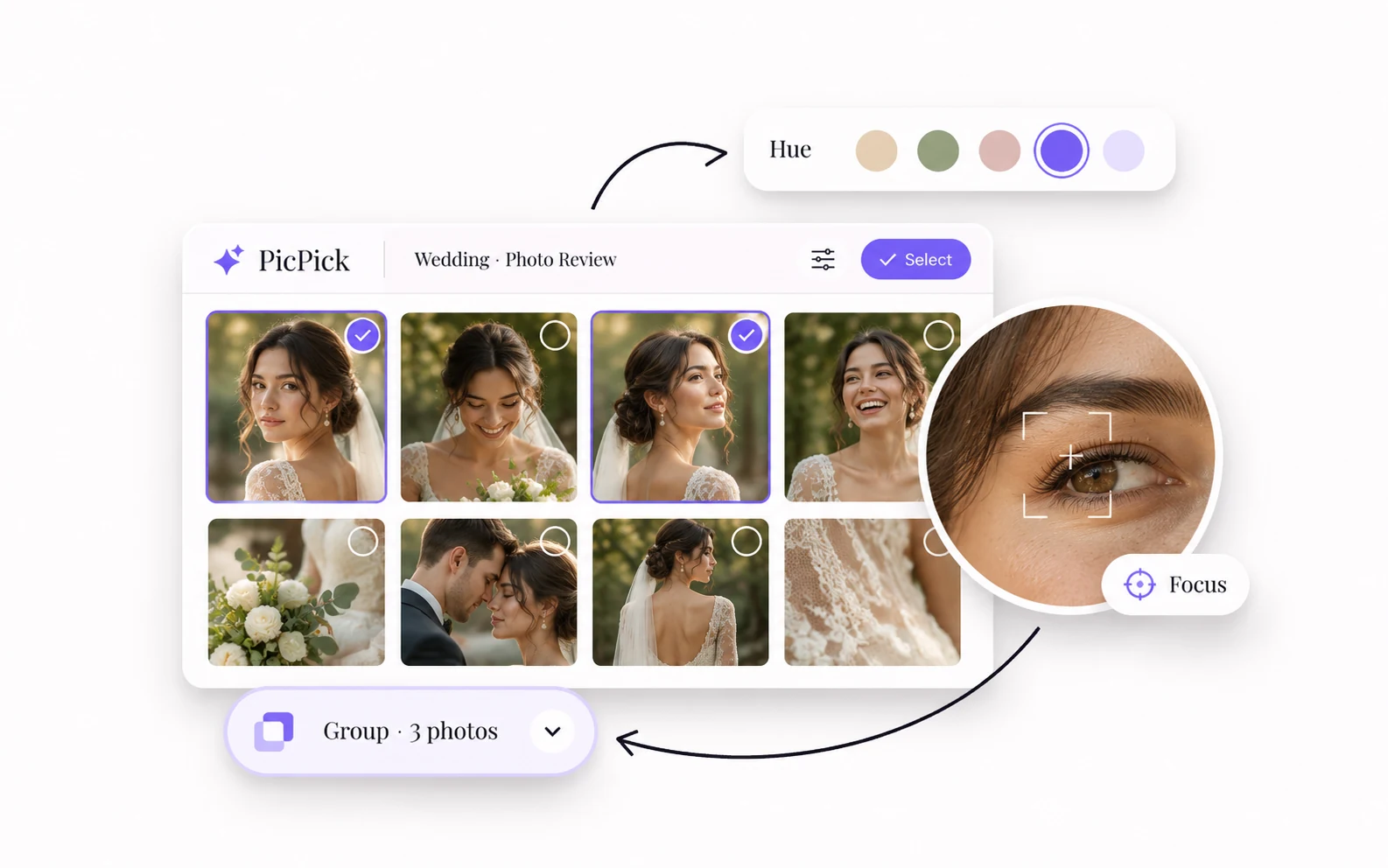
Narrow the review by colour, sharpness, exposure, orientation, detected people or scene. Filters help you find what to inspect. -
Suggested picks
Use the recommended shot as a starting point. Check expressions, pose and composition yourself before selecting files for removal.
Where it fits in your workflow
Wedding group portraits
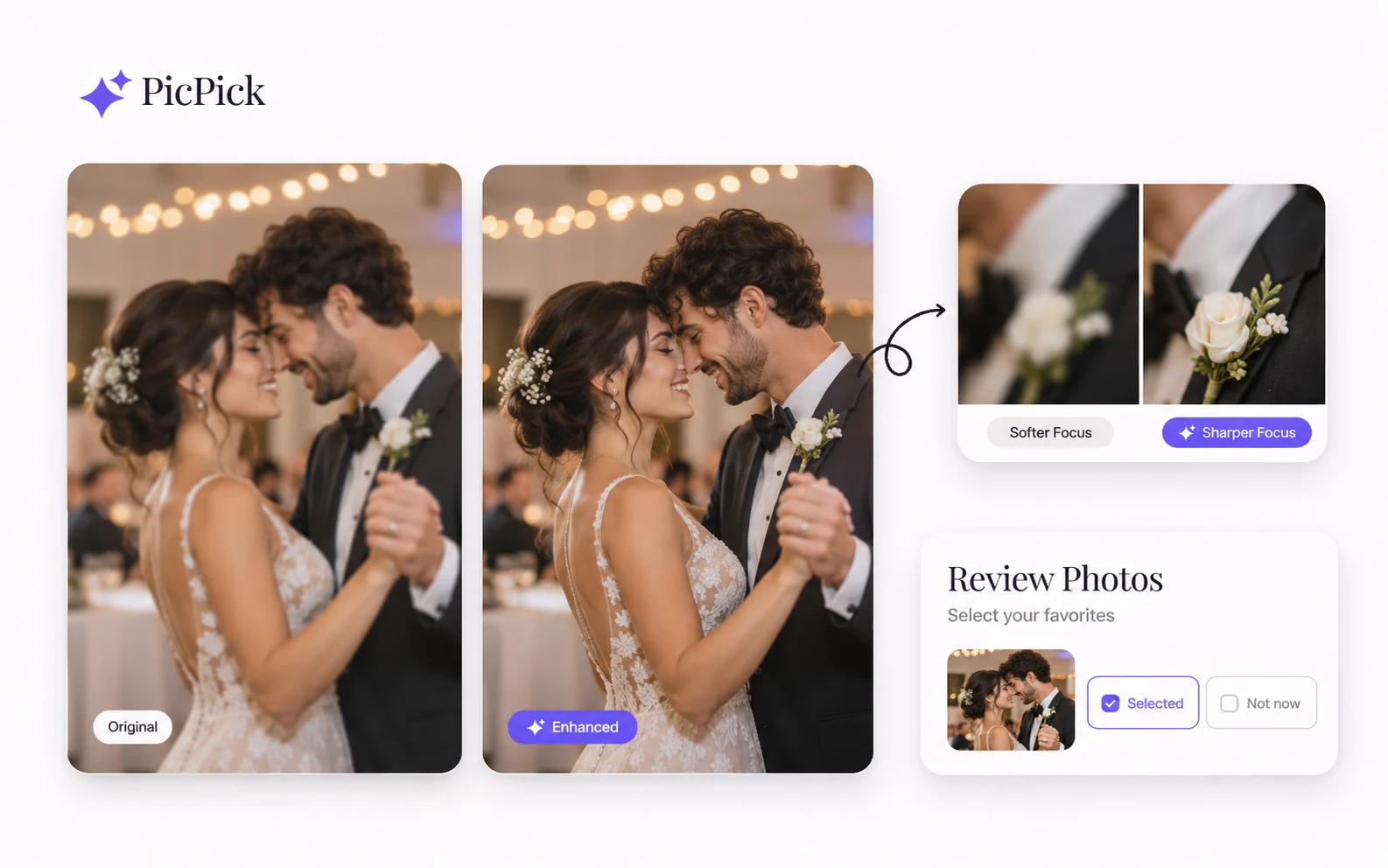
Compare repeated frames of the same group to catch blinks, movement and missed focus.
Burst sequences
Review several versions of a moment together before preparing a client shortlist.
Manage analysis and review removals
Processing controls
Watch job progress and use Pause, Resume or Stop when available. A photo already being processed can take time to finish.
Review the selection
Check the files you have selected and read the confirmation before removing anything.
Common questions
Wait for processing to finish and check the job status if progress stops.
Read the service confirmation and recovery policy. Do not assume permanent deletion can be undone.
Get started with Find Similar
Follow the walkthrough or choose how to open PicPick on your device.