


Client Enquiries
Collect enquiries from your published studio website and keep track of the follow-up.
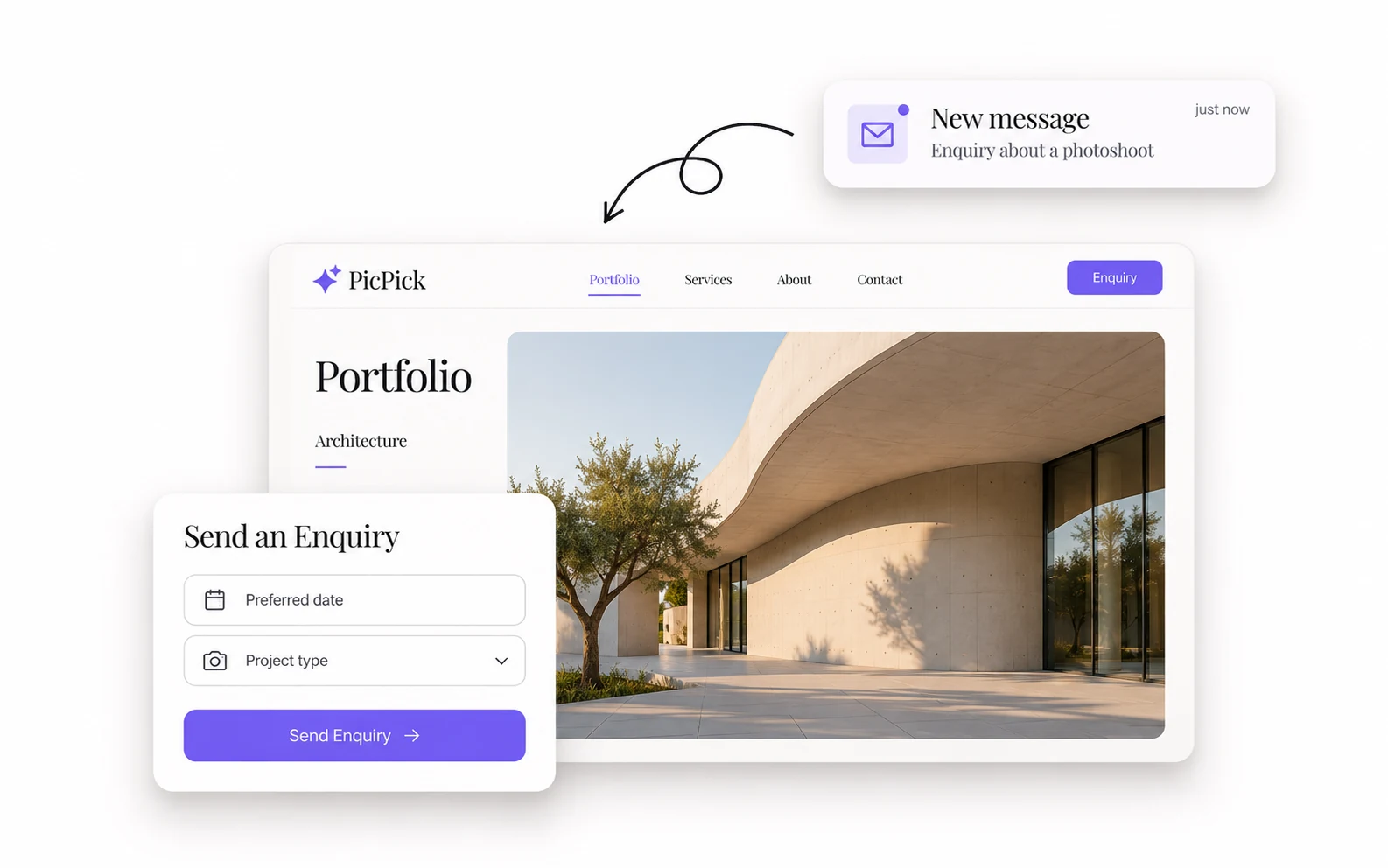
Let a prospective client contact your studio from your published PicPick website. The form gives them a place to leave their details and explain the shoot they have in mind.
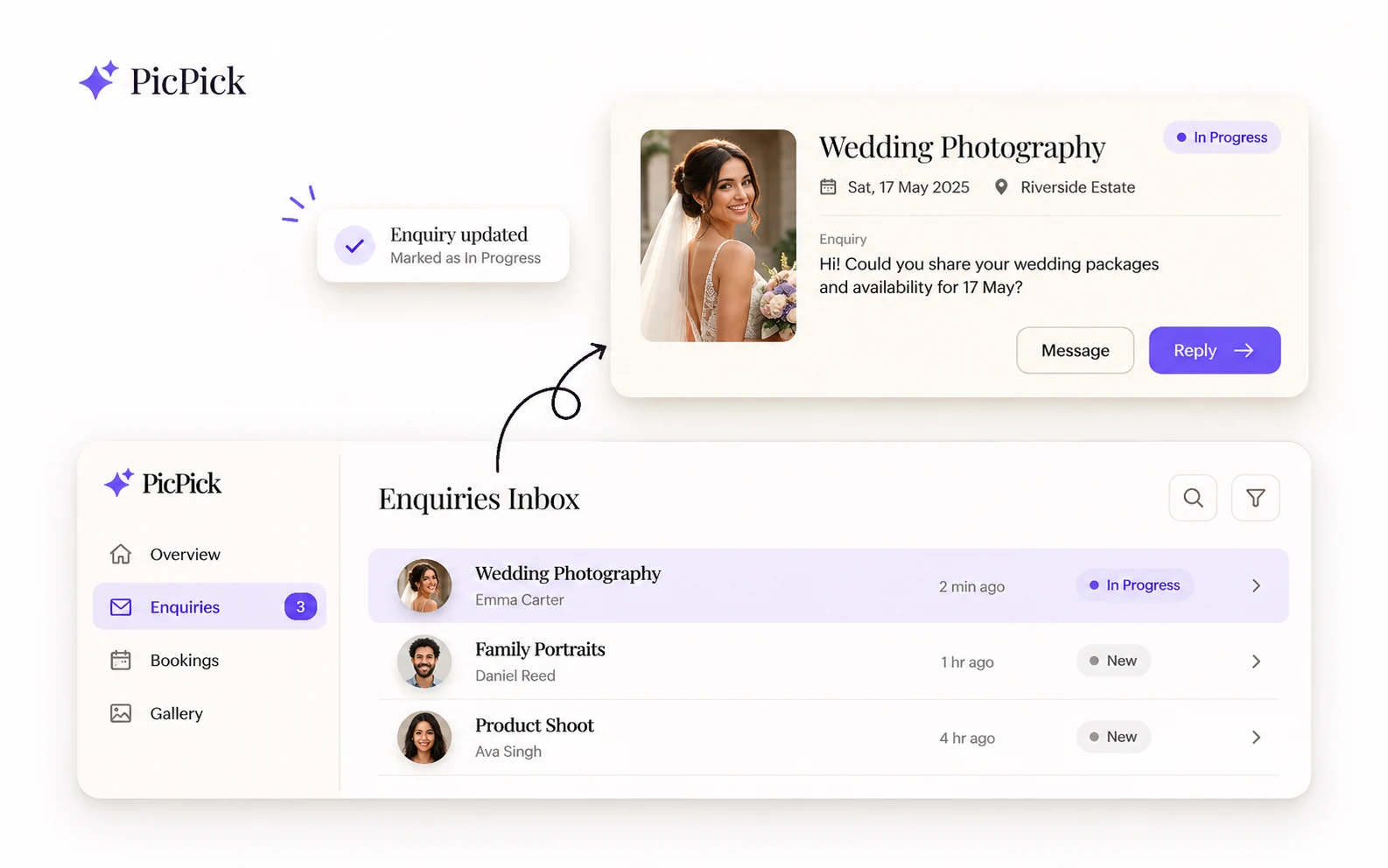
Submissions appear in Enquiries for the studio that owns the site. Review the message and contact information before replying or changing its status.
What’s included
-
Website form
Add an enquiry form to a page in Website Builder and configure the fields that matter for your studio. -
Studio inbox
Search and filter submissions and open a record to see the visitor’s message and contact details. -
Follow-up status
Use the available status actions to distinguish enquiries that still need attention from those you have reviewed.
Where it fits in your workflow
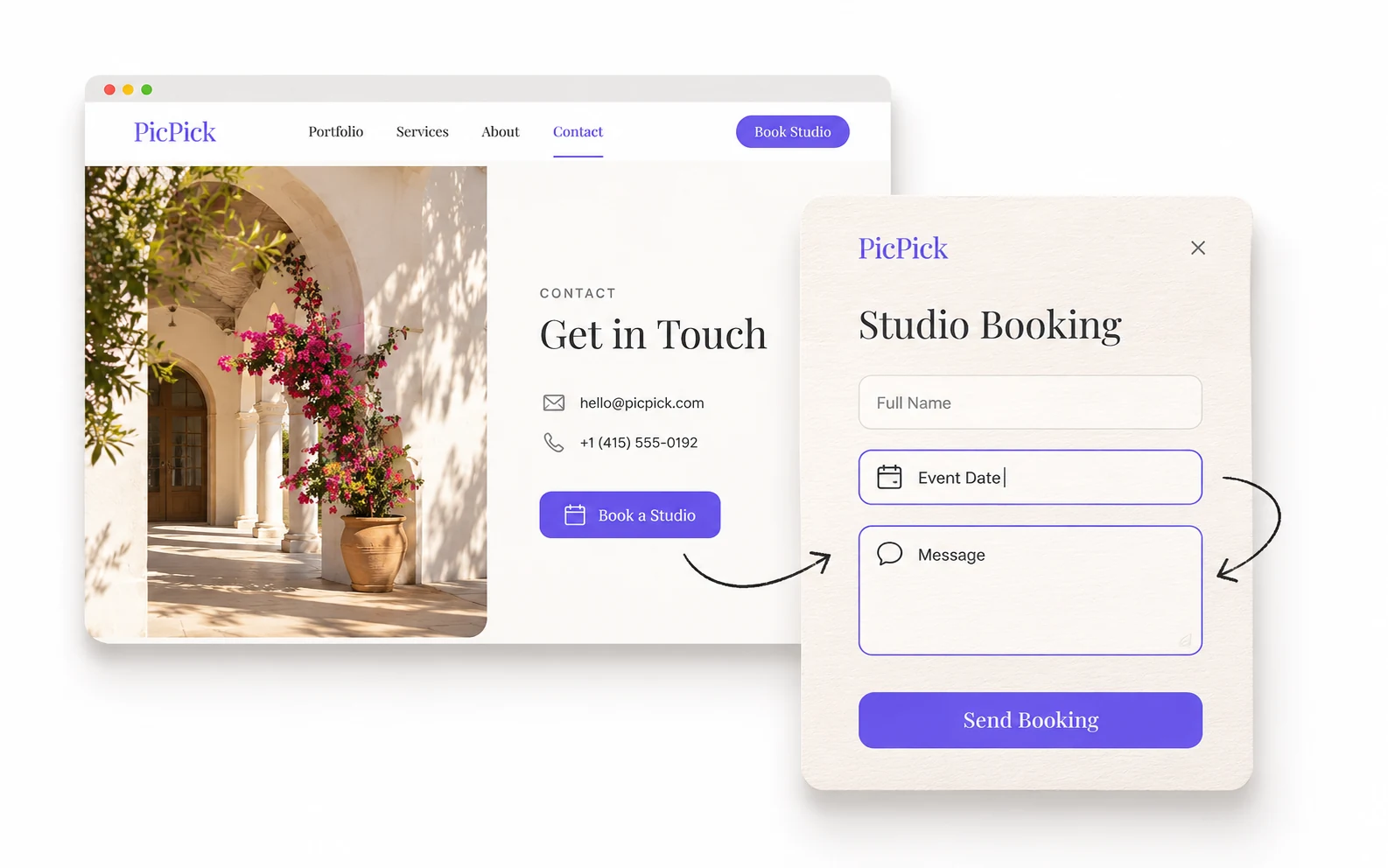
Wedding availability
Invite couples to share their event date and plans, then use the message to prepare a relevant reply.
Commercial briefs
Give prospective clients a place to describe the work before you discuss scope and deliverables.
Test delivery and manage the inbox
Test from the published site
Submit a test enquiry from the public URL and confirm it reaches the correct studio inbox.
Review before archiving
Read the request and check whether follow-up is needed before archiving or deleting it.
Common questions
Clear filters, verify the site/studio and submit a fresh public test.
Get started with Client Enquiries
Follow the walkthrough or choose how to open PicPick on your device.