


PicPick Canvas
Generate and refine images using the AI tools available in your workspace.
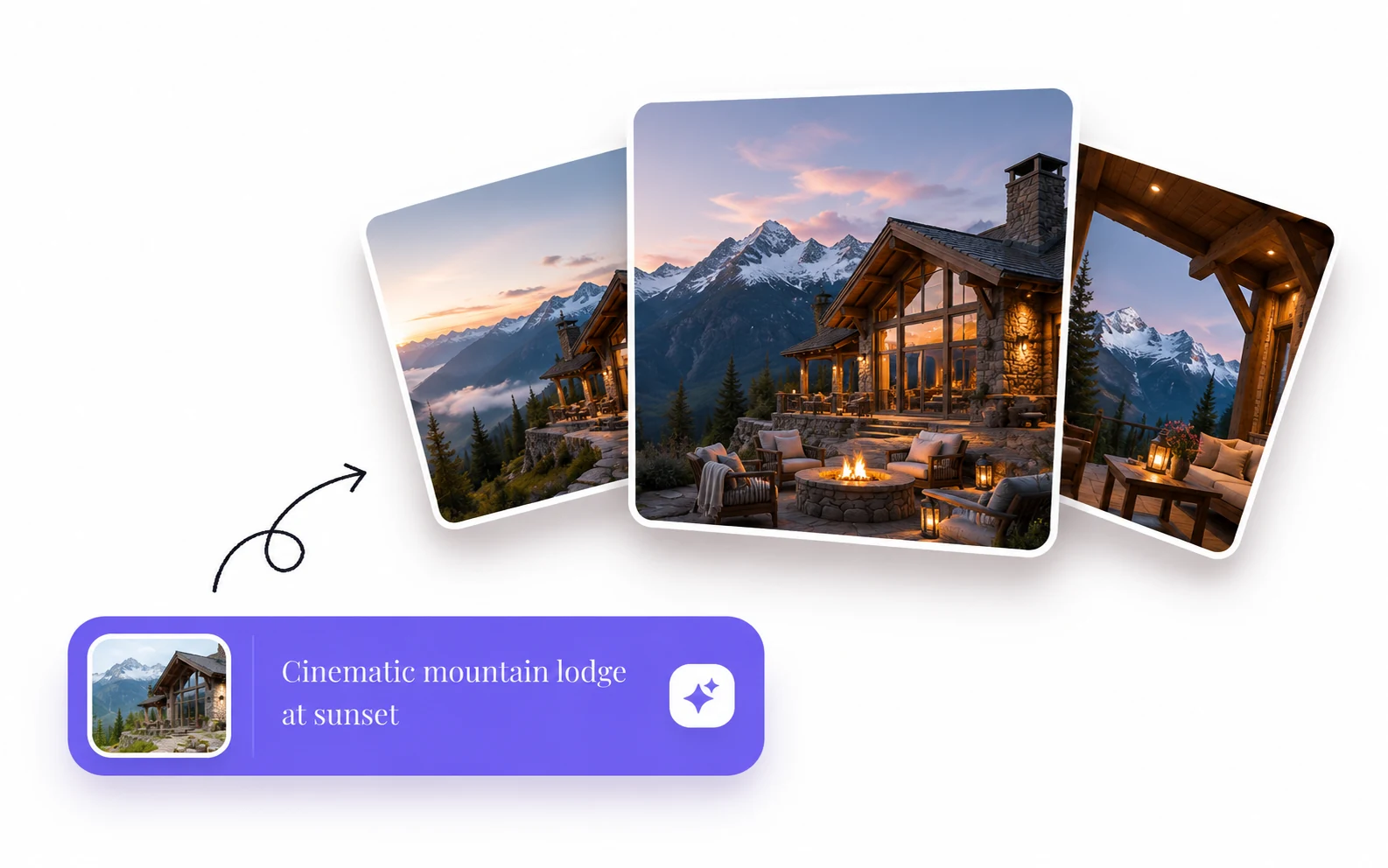
Use the available Canvas tools to explore a visual idea or make a variation from a reference image. Text-to-image starts with a written brief. Image-to-image starts with a reference and a description of the change.
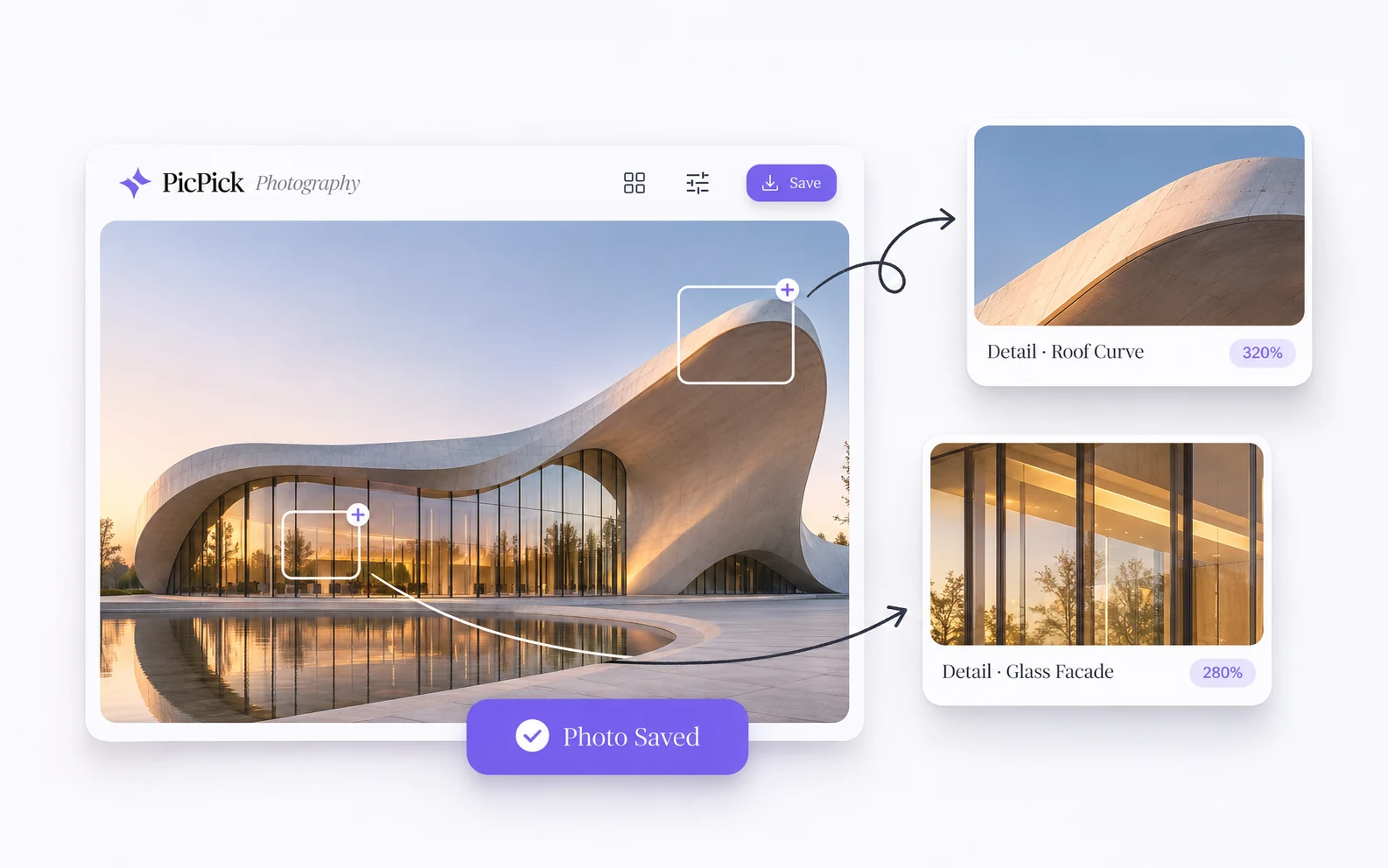
Review the output before saving it. For client work, check details that matter in the final image, including faces, hands, text and the overall composition.
What’s included
-
Text-to-image
Describe the subject, framing, light and style you want. Include the details that should be visible in the result. -
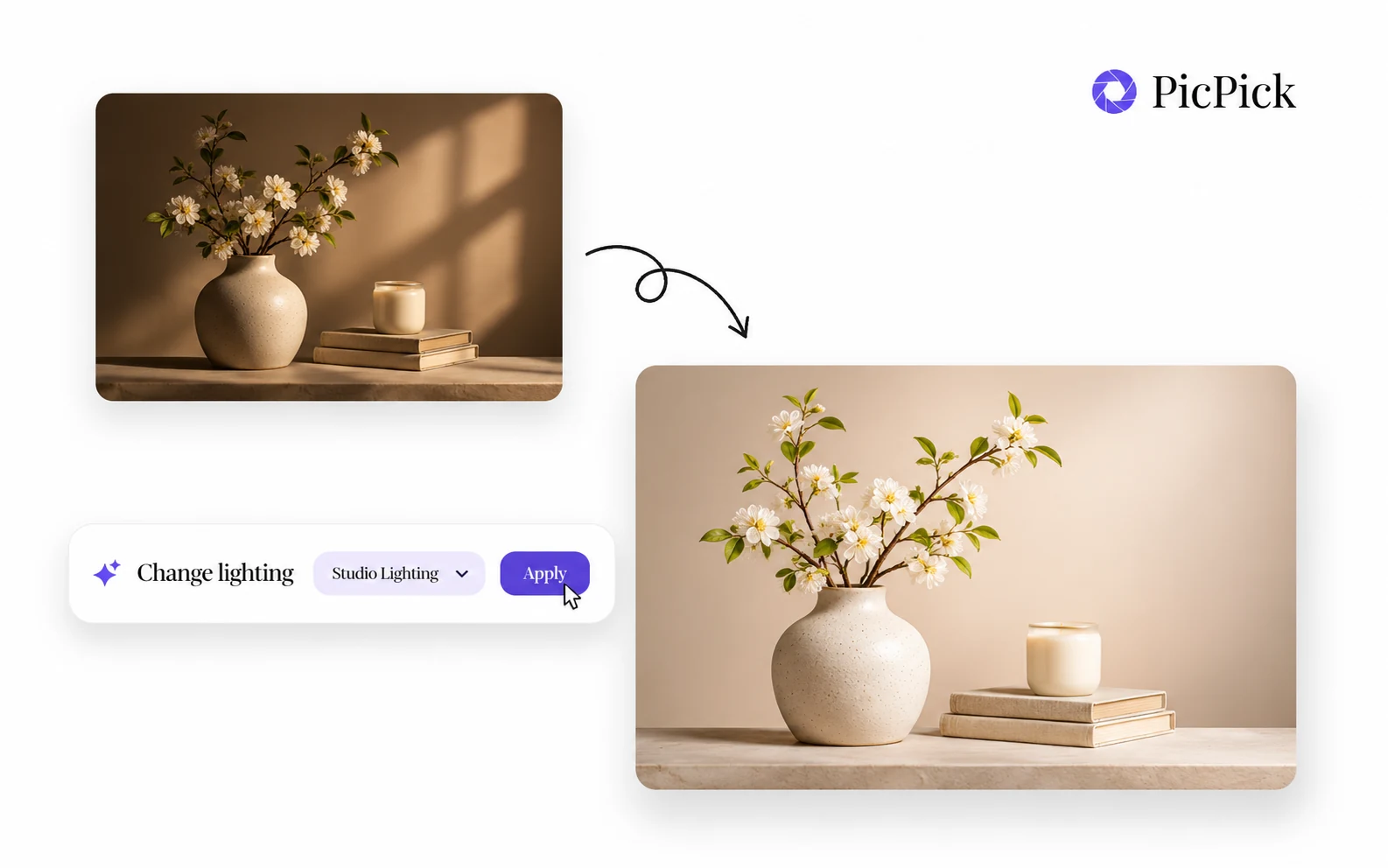
Image-to-image
Upload the intended reference and describe the change you want, including details you want to retain. -
Available tools and models
Canvas shows the tools, models and settings available to your account. Review the displayed cost before starting a generation.
Where it fits in your workflow
Concept exploration
Try lighting or colour directions while preparing a creative brief.
Reference-based variations
Explore a new treatment for an existing composition and compare it with the original.
Check costs and review results
Before generation
Confirm the reference, model and displayed credit or payment information.
After generation
Let the request finish before submitting it again. Download the outputs you want to retain after checking the details.
Common questions
No. Inspect the result and refine the request using the available controls.
Get started with PicPick Canvas
Follow the walkthrough or choose how to open PicPick on your device.